Cloud-hosted AI assistants are convenient, but they come with trade-offs you feel quickly once you start wiring real workflows: your data leaves your machine, your conversation history lives on someone else's disk, your rate limits and pricing change overnight, and you can't reach the assistant from a shell on your home network without yet another integration.
OpenClaw (formerly Moltbot / Clawdbot — yes, the lobster mascot 🦞 stays) takes the opposite approach: it's an open-source, self-hosted personal assistant that runs on your own machine, talks to whichever LLM you point it at (cloud or local), and lets you reach it from Telegram, Discord, WhatsApp, Slack or iMessage — because the brain lives next to your data, not behind someone else's auth layer.
In this post I'll walk through the full stack: what OpenClaw actually is, how to install it, how to wire it to Anthropic / OpenAI / Google or a local Ollama model, how to turn on Telegram and Discord for remote control, and how to extend it with community skills from skills.sh.
What is OpenClaw
OpenClaw is a single long-running daemon that connects four things:
- A gateway — a small WebSocket hub (default
ws://127.0.0.1:18789) that every other component talks to.
- Channels — chat surfaces you already use: Telegram, Discord, WhatsApp, Slack, iMessage. Any message sent to a channel becomes a request to the gateway, and any reply is streamed back to the channel.
- Skills — structured capability packages (a folder with a
SKILL.md instruction file + optional TypeScript/Markdown). Skills extend what the assistant can actually do — run shell commands, hit internal APIs, drive a browser, summarise your notes, etc.
- LLMs — Anthropic Claude, OpenAI, Google Gemini, or anything OpenAI-API-compatible running locally (Ollama, LM Studio, vLLM…).
The important design choice: every chat surface talks to the same gateway, which routes to the same LLM with access to the same skills and memory. So you can start a task from Telegram, finish it from Discord, and the assistant keeps context in one place.
Architecture
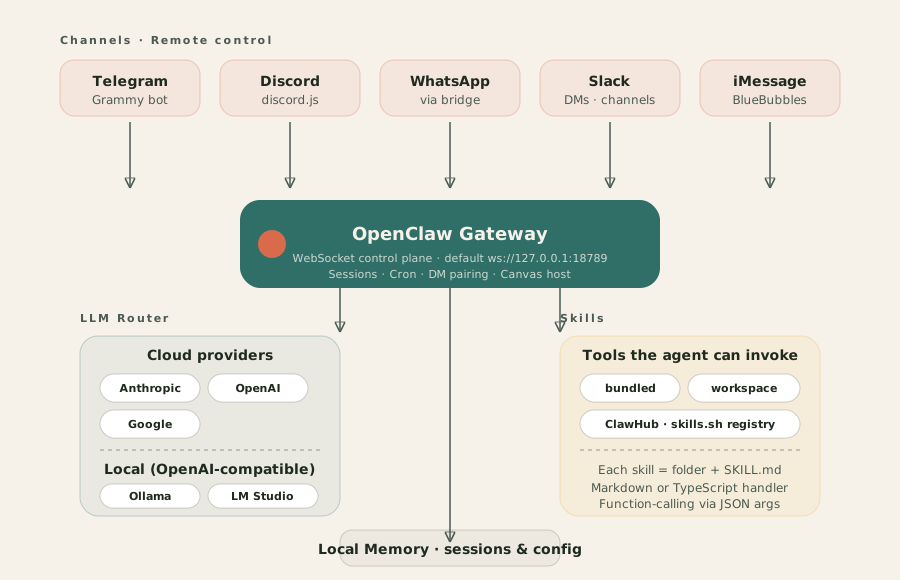
The gateway is the hub. Everything else is a plugin that connects to it. That's what makes it straightforward to add or remove a channel without touching the LLM wiring, or swap Claude for a local Llama model without touching the Discord bot.
Install
You need a recent Node. Node 24 is the sweet spot, but anything ≥ 22.16 works.
# Global install
npm install -g openclaw@latest

# Install the OS daemon (launchd on macOS, systemd user service on Linux)
openclaw onboard --install-daemon

# Verify everything is healthy
openclaw doctor
openclaw doctor checks the Node version, config path, gateway reachability, and which channels / LLMs are configured. Run it any time something stops working — it's almost always the first thing to tell you what's wrong.
Config lives at ~/.openclaw/config.yaml. You can edit it by hand or use the openclaw config set CLI — both write to the same file.
Configure an LLM provider
OpenClaw supports three cloud providers out of the box: Anthropic, OpenAI, and Google. Pick one (or several — you can switch per-conversation).
Option A — CLI
# Pick a provider
openclaw config set model.provider anthropic   # or: openai, google

# Set an API key
openclaw config set model.apiKey sk-ant-...

# Pick a specific model id
openclaw config set model.id claude-sonnet-4-6
Option B — edit ~/.openclaw/config.yaml
models:
  default: anthropic
  providers:
    anthropic:
      apiKey: sk-ant-...
      model: claude-sonnet-4-6
    openai:
      apiKey: sk-...
      model: gpt-4o-mini
    google:
      apiKey: ...
      model: gemini-2.5-pro
After any config change, restart the daemon so it picks up the new values:
openclaw restart
Local LLM with Ollama (zero-cost, offline)
This is my favourite OpenClaw feature. If you run Ollama on the same machine, OpenClaw can drive it through Ollama's OpenAI-compatible endpoint — no API key, no network hop, no usage meter.
# 1. Pull a model (pick based on your RAM budget)
ollama pull llama3.2:3b        # fast, lightweight, good for routing + simple skills
ollama pull qwen2.5:14b        # better reasoning, ~9 GB RAM
ollama pull llama3.3:70b       # strongest open model, needs serious hardware

# 2. Make sure Ollama is running
ollama serve &
Then point OpenClaw at it:
# ~/.openclaw/config.yaml
models:
  default: ollama-local
  providers:
    ollama-local:
      endpoint: http://127.0.0.1:11434/v1
      api: openai-responses       # or: openai-completions
      model: llama3.2:3b
      contextWindow: 65536        # aim for ≥ 64K — OpenClaw packs a lot into the prompt
Restart, and everything — channels, skills, memory — now flows through your local model. For development and long-running background automations that would rack up huge API bills, this is the move.
Remote control from Telegram
This is how you turn OpenClaw into something you can actually reach from your phone.
-
Create the bot. Open Telegram, DM @BotFather, run /newbot, pick a name and a username. BotFather replies with a token that looks like 1234567890:AAEh....
-
Add the token to OpenClaw and lock it down to your own Telegram user id (otherwise anyone who guesses the bot handle can talk to your assistant):
# ~/.openclaw/config.yaml
channels:
  telegram:
    enabled: true
    botToken: "1234567890:AAEh..."
    dmPolicy: allowlist
    allowedUsers:
      - 123456789          # your Telegram numeric user id
-
Start the gateway so the Telegram bridge comes up:
openclaw gateway
-
Pair by DMing your bot. Send /start. If your id is in allowedUsers, the bot replies and routes the message to your LLM + skills. If not, it silently drops the message — which is the behaviour you want.
From there, every DM to the bot is a gateway request, every reply streams back as Telegram messages, and skills can send you proactive notifications (e.g. "build finished", "calendar conflict detected").
Remote control from Discord
Discord is almost the same idea, but the invite flow is a bit different.
-
Create the app. Go to the Discord Developer Portal, create a new application, then create a bot under it. Copy the bot token.
-
Generate an invite URL. In the app's OAuth2 → URL Generator, select scopes bot and applications.commands, then pick the minimum permissions you need (usually Send Messages, Read Message History). Open the generated URL and invite the bot to a server you control.
-
Wire it into OpenClaw:
channels:
  discord:
    enabled: true
    botToken: "MTIzNDU2Nzg5..."
    dmPolicy: allowlist
    allowedUsers:
      - "your_discord_user_id"
    allowedGuilds:
      - "your_server_id"
-
Restart the gateway and DM the bot from Discord, or @-mention it in an allowed channel. Same routing semantics as Telegram: message → gateway → LLM + skills → streamed reply.
dmPolicy: allowlist is the safest default for both channels. Only flip to open if you've wrapped the bot in some other access control.
Skills: find, install, build
Skills are where OpenClaw becomes yours. Three ways to add them:
1. The curated marketplace — skills.sh
skills.sh is the official registry. Browse, pick one, copy the install command. There's also a community-maintained awesome-openclaw-skills list if you want a wider net.
2. Native CLI install
# Search
openclaw skills search calendar

# Install into your user skills directory
openclaw skills install calendar-sync
openclaw skills install browser-automate

# See what's installed
openclaw skills list
3. ClawHub (npm-backed installer)
Some skills are distributed as npm packages — clawhub is the installer that knows how to wire them into OpenClaw's skills directory correctly.
npx clawhub@latest install notes-summariser
npx clawhub@latest install home-assistant-control
4. Write your own
A skill is literally a folder. The minimum shape:
my-skill/
  SKILL.md        # natural-language instructions + YAML frontmatter
  index.ts        # optional: code the skill can run
SKILL.md starts with frontmatter describing the skill's id, description, and which tools/capabilities it exposes. The body is the prompt OpenClaw injects when the skill is invoked — write it the way you'd write instructions for a new hire, not the way you'd write code comments.
Security: always read the skill first
This is the single most important habit. Before installing anything:
cat ~/.openclaw/skills/<name>/SKILL.md
ls ~/.openclaw/skills/<name>/
A skill runs on your machine with your credentials. Treat the registry with the same suspicion you'd treat any npm install — read the instructions, scan the scripts, and if anything asks for more access than it needs, don't install it. The gateway's allowlists help, but the first line of defence is you reading SKILL.md.
From personal assistant to business gateway
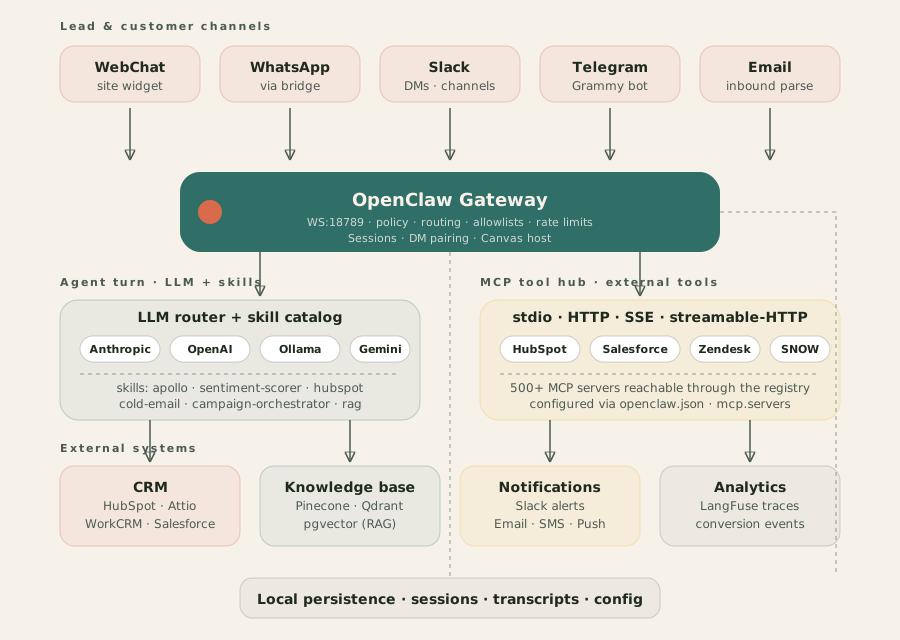
Everything up to here has framed OpenClaw as a personal assistant — a daemon that lives on your laptop and lets you run shell commands from Telegram. That's the smallest interesting shape. The more useful shape, once you've lived with it for a week or two, is a business gateway: one OpenClaw process handles inbound leads on your website, triages customer support tickets from Slack, and keeps your CRM in sync, all by composing skills and MCP servers.
A quick honesty note first: OpenClaw ships with no native CRM, no lead pipeline, no ticketing system. The core is a gateway + skill runner + MCP client. Every business capability below is assembled from community skills and MCP servers pointing at third-party systems (HubSpot, Salesforce, Zendesk, ServiceNow). That's a feature, not a limitation — you get to pick the providers you already pay for, and swap them without rebuilding the agent.
Finding & qualifying leads
A typical inbound-lead loop looks like this. A visitor types into WebChat (or replies on WhatsApp / Slack / email). The gateway hands the message to the LLM with a skill catalog. The LLM picks apollo to enrich the contact (company, headcount, title), sentiment-priority-scorer to grade intent, and hubspot (or the HubSpot MCP server via Composio) to search for an existing contact or create one. If the lead is hot, slack-notify drops a summary into #sales.
The community catalog at awesome-openclaw-skills has the pieces you'd actually wire together:
- Enrichment & qualification:
apollo (Apollo.io people/org data), sentiment-priority-scorer, browser-automation skills for scraping LinkedIn / company sites.
- CRM sync: official
hubspot skill (api.hubapi.com for contacts, companies, deals, tickets, pipelines), attio-enhanced, workcrm (local-first), kvcore-mcp-cli.
- Outreach:
cold-email, cold-outreach, campaign-orchestrator, foxreach, brevo, kit-email-operator, email-marketing-2.
Minimum wiring:
# Skills that do the lead work
openclaw skills install apollo
openclaw skills install sentiment-priority-scorer
openclaw skills install hubspot

# Or route through a managed MCP server instead of a raw skill
openclaw mcp set hubspot \
  --transport streamable-http \
  --url https://mcp.composio.dev/hubspot/<token>
Third-party vendor blogs cite 60–70 % autonomous qualification or ticket-resolution rates for workflows like this — treat those as vendor claims, not OpenClaw-published benchmarks. Start with a narrow pipeline (one channel, two skills, one CRM) and measure your own numbers before scaling.
Managing your agent software ecosystem
"Software management" in an OpenClaw deployment means three catalogs the gateway owns, all driven by CLI:
- Skills catalog —
openclaw skills list | search | install. Workspace > global > bundled precedence; a workspace skill shadows a global one with the same id, which is usually what you want when you're iterating.
- MCP registry —
openclaw mcp list | set | unset. stdio, HTTP, SSE, and streamable-HTTP transports; each server is declared in openclaw.json under mcp.servers, which means you can version-control the whole tool surface.
- Model router — Anthropic, OpenAI, Gemini, Ollama, LM Studio, vLLM, or any OpenAI-compatible endpoint. Switchable per conversation, so you can default to a local Llama for routing and cheap turns and escalate to Claude for hard reasoning.
Day-two ops stay boring on purpose: openclaw doctor for health, openclaw onboard --install-daemon for a launchd / systemd user service, and managed hosts (oneclaw.net, clawhost, getclaw.sh) if you don't want to babysit a VPS. The gateway writes sessions + config locally, so if the process dies you don't lose in-flight conversations.
Customer management
The same gateway you use for leads doubles as a customer-support hub. Inbound channels (WebChat, WhatsApp, Slack, Telegram, Discord) funnel into the gateway; the agent classifies the message, looks up the customer in HubSpot / Zendesk / ServiceNow via MCP, and answers from a RAG knowledge base backed by Pinecone, Qdrant, or pgvector (BYO — there are community skills for each). If the agent can't resolve it, it opens a ticket with the right queue and @-mentions the on-call in Slack.
Two things that make this tractable in practice:
- Transcript persistence is local. The gateway stores every turn on disk, and MCP tools like
conversations_list / messages_read / events_poll let another agent (or a human supervisor) audit a conversation without going through a vendor dashboard.
- Voice + Canvas are first-class. The iOS / Android mobile nodes let a support lead listen to a live customer conversation and correct the agent mid-turn — which is the feature that usually separates "AI support toy" from "AI support you'd actually ship".
Communication flow: an inbound lead end-to-end
Here's what a single "request a demo" message actually does:
- Visitor → Gateway. Message hits WebChat, the channel plugin forwards it over WS to the gateway. Gateway applies policy (workspace, allowlist, rate limit).
- Gateway → LLM. System prompt + skill catalog + MCP tool schemas + conversation history go out as the turn.
- LLM → Skills. Model calls
apollo.enrich(email) to get company / size / title.
- Skills → MCP (CRM).
hubspot.searchContact hits api.hubapi.com; if none, hubspot.createContact.
- Skills → LLM. Enriched context returns,
sentiment-priority-scorer flags priority: HIGH, intent: buy.
- LLM → Gateway → Visitor. Reply streams back token-by-token through the same WebChat socket.
- Async side-effects. In parallel, the gateway fires
slack-notify.send("#sales", summary), hubspot.updateContact(stage: "demo-requested"), and persists the transcript locally. Optional langfuse.log closes the analytics loop.
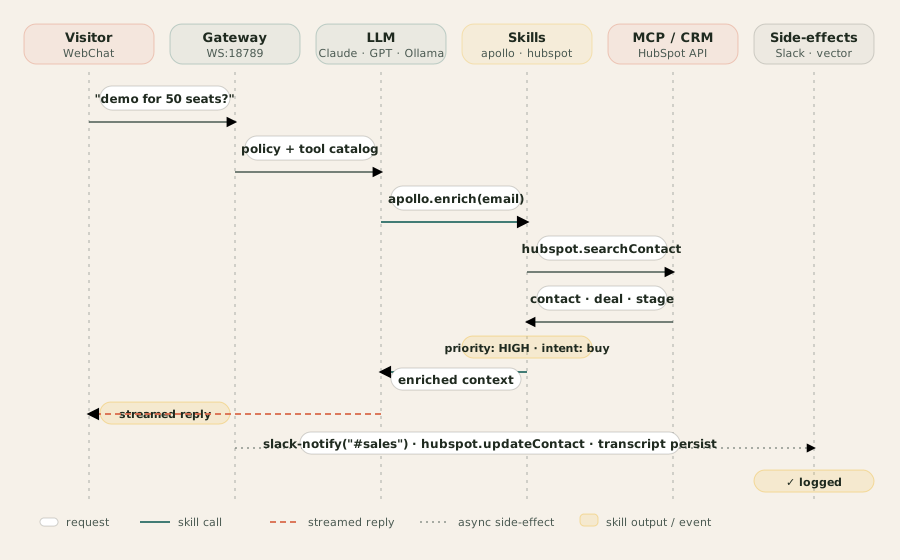
The architecture collapses nicely: one gateway, one LLM turn, many side-effects. Swap WebChat for WhatsApp or Slack and only the inbound lane changes — everything downstream is the same.
Wrap-up
OpenClaw ends up being the kind of tool that feels small at first — a local daemon, a config file, a few channels — and then compounds. Once the gateway is running and you've added two or three skills, you stop thinking about where the assistant lives and start thinking about what else it should automate.
A few things I'd suggest once the basics are working:
- Switch the default model to a local Ollama one, and keep a cloud provider configured as a fallback for hard reasoning tasks.
- Add a skill that summarises your daily calendar and sends it to your Telegram at 8am — 10 minutes to build, pays dividends every day.
- Read every
SKILL.md before installing. Twice.
Links
Related Ecosystem
Self-hosted AI assistants sit at the intersection of several active open-source communities. These projects and standards share design goals with OpenClaw and can serve as reference implementations or integration targets.
Gateway & Routing
- LiteLLM — Unified LLM API proxy supporting 100+ providers with load balancing and rate limiting.
- Ollama — Local LLM runtime with model management, REST API, and OpenAI-compatible endpoints.
Agent Frameworks
- LangGraph — Stateful agent orchestration with cycles, branching, and human-in-the-loop.
- CrewAI — Multi-agent framework for role-based task delegation and collaboration.
Remote Control & Messaging
- BotFather — Telegram's official bot creation interface and token management.
- Discord Developer Portal — Bot account setup, slash commands, and WebSocket gateway documentation.
Skills & Extensibility
- MCP Specification — Open protocol for connecting LLMs to external tools, data sources, and services.
- skills.sh — Community skill registry with installable packages for common agent capabilities.
Building self-hosted AI workflows? Let's connect. I help teams design local-first AI stacks — LLM routing, skill architecture, and secure remote-control deployments.